Amazon Fire TV
- 4.6
- Rating
- 50.00M
- Installs
- Free
- Price

 Analysis by App-foxy
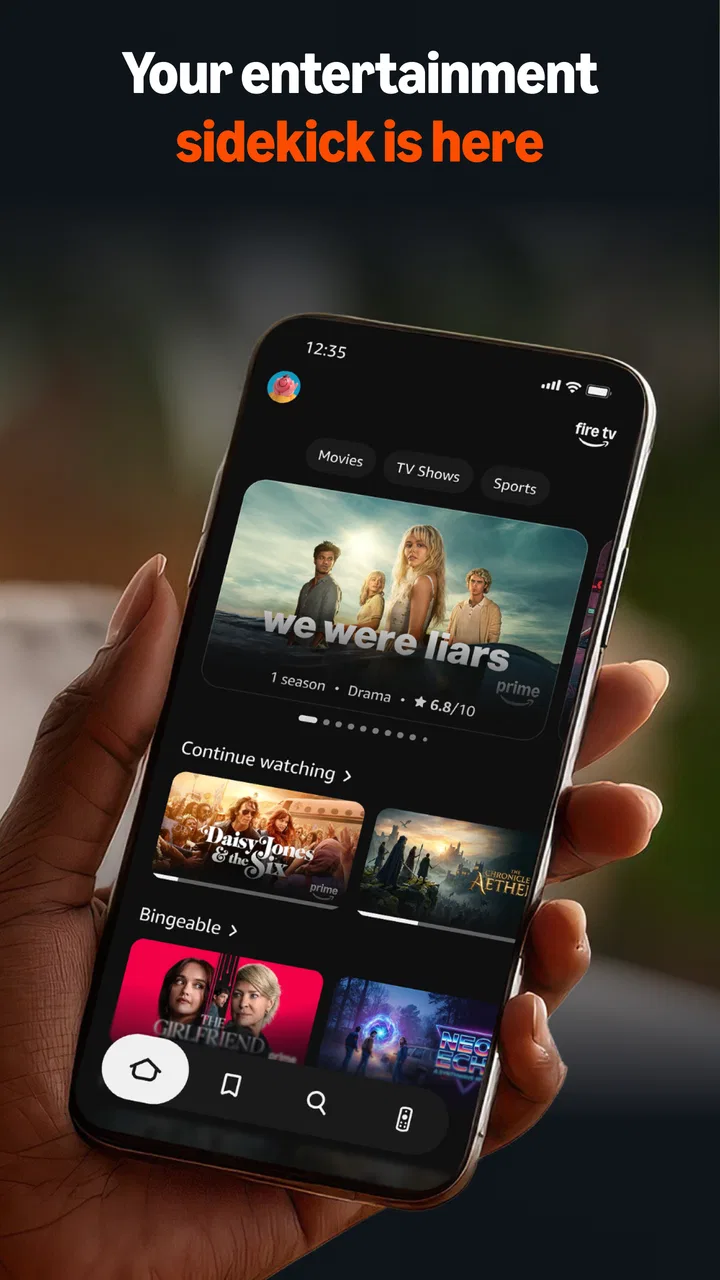
If you own a Fire TV device, Amazon Fire TV is the companion app I would install before reaching for the physical remote. It turns an Android or iOS phone into a practical controller, with navigation, an on-screen keyboard, and voice search gathered in one place. I found it most useful when the remote was out of reach, when typing a title became tedious, or when several people were trying to choose something to watch.
This is a free tools app from Amazon Mobile LLC, rated for Everyone. It has been available since November 18, 2014, and its current version is 4.0.1. With an average rating of 4.6 from around 560 thousand ratings and more than 50 million installs, it is clearly familiar to a large number of Fire TV owners. Those figures do not automatically make it perfect, but they do match my impression: it is a focused utility that solves a very specific problem without trying to become a second streaming service.
What the app feels like in everyday use
The first thing to understand is that Amazon Fire TV is not a replacement for the streaming apps installed on your television. It does not give me a new catalog to browse or make subscriptions unnecessary. Its job is simpler: it provides a phone-based way to control a compatible Fire TV device.
You May Also Like

 Blood Strike: 2.5 Anniversary
Blood Strike’s Loadouts Turn Every Drop Into a Tactical Gamble
A close look at Blood Strike’s custom loadouts: how fast access to signature weapons reshapes its battle royale rhythm, rewards preparation, and narrows the gap between fights.

 Pandora - Music & Podcasts
Pandora’s Music Is Easy to Start, but Harder to Recover
Pandora’s strength is its low-effort path from a seed to a station. Its weak spot is how much confidence it asks you to place in connection, setup, and quiet recovery.

 8 Ball Pool
 Is Built on Rivalries, Rematches, and Routine
A close look at the rivalries, rematches, shared routines, and unanswered safety questions that turn a quick pool match into a persistent mobile community.

 Samsung Music
’s Quiet Strength Is Playing What You Already Own
Its reach comes less from spectacle than from dependable access to a personal library. That simplicity is both the app’s strongest retention engine and its ceiling.

 AccuWeather: Weather Radar
AccuWeather Review: A Quick, Clear Forecast for Everyday Decisions
For everyday plans, the best forecast is the one you can understand quickly. AccuWeather makes rain timing, radar, and local conditions easy to act on, with a few trade-offs.

 Hill Climb Racing
Why Hill Climb Racing Still Turns Crashes Into One More Run
A tiny car, a bumpy hill and one more upgrade: Hill Climb Racing keeps resurfacing because its simple chaos makes every near-miss feel personal.
More From Our News Desk



That narrow purpose is also its main strength. The interface is easier to understand than a remote with many small buttons. A directional control handles movement around the television screen, while the central selection action lets me open the highlighted item. Back and home controls help me recover when I have wandered into the wrong menu, and playback controls are available when I am watching something.
The keyboard is the feature I notice most often. Searching with a television remote can mean moving across an alphabet one letter at a time, which becomes especially tiring for long titles, actor names, or unfamiliar words. With the app open on my phone, I can type in a more natural way and send the search to Fire TV. It is a small change, but it removes one of the most irritating parts of browsing.
Voice search is useful in a different way. When I know what I want but do not want to type it, speaking the request can be quicker. I treat it as a convenience rather than a guarantee that every phrase will be understood perfectly. Names, accents, background noise, and vague requests can still affect the result, so I keep the keyboard available as a dependable fallback.
The best reason to install it is not that it adds more entertainment; it removes friction from the entertainment you already have. That distinction matters. If your physical remote works well and you rarely search for anything, you may only open this app occasionally. If your remote is missing, typing is a regular annoyance, or you often use Fire TV in a shared room, the phone controller becomes much more valuable.
Who will get the most from it
I would recommend it first to people setting up a Fire TV for the first time, because having a second control method nearby makes the early experience less stressful. It is also handy for households where the remote is regularly misplaced, for anyone who prefers typing on a phone, and for viewers who search for content by saying a title instead of navigating through menus.
It can be helpful when the television is mounted in a position where the remote is awkward to use, too. A phone is often already in my hand while I am deciding what to watch, so switching to a control app feels more natural than standing up to find a small remote. Families may also appreciate the shared convenience, although everyone should understand that the phone still needs to connect to the same Fire TV setup.
I would skip it if you do not own a compatible Fire TV device, if you are looking for a general remote for many television brands, or if your main goal is to control every smart-home product from one application. This is not a universal remote and it is not a broad home-control dashboard. Its usefulness depends on having the right Amazon streaming hardware to operate.
Getting connected without guessing
After installing the app, I would begin with the television turned on and the Fire TV device ready. The phone and the streaming device need to be on the same local network for the app to find and control the Fire TV. This is the first point where a new user can become confused: installing the app alone does not make the phone a remote.
Open the app and allow it to look for available Fire TV devices. When the correct device appears, select it. A pairing code may be shown on the television, and entering that code in the phone app completes the connection. The exact screen wording can vary with the device and software environment, but the basic path is straightforward: discover the Fire TV, choose it, and confirm the connection shown on the television.
If nothing appears, I would check the network before reinstalling anything. A phone connected to mobile data while the Fire TV uses home Wi-Fi will not provide the local connection the app needs. Guest networks can also separate devices from one another, and a router with several network names can place the phone and television in different parts of the home network. Moving both onto the same ordinary Wi-Fi network is the sensible first fix.
Another practical tip is to check whether the television is actually awake. A sleeping screen, a switched-off streaming stick, or a television set to the wrong input can make a working connection look broken. I would wake the Fire TV, confirm that its home screen is visible, and then try discovery again before changing settings elsewhere.
The app is available for devices running Android 7.0 or later. That makes it suitable for many older Android phones, but anyone using an older handset should check the operating-system requirement before planning around it. On iOS, the same basic idea applies: the phone becomes the controller, while the Fire TV remains the device displaying the content.
The first useful success: search, open, and play
Once pairing is complete, I recommend testing one simple action instead of exploring every control immediately. From the app’s remote screen, move around the Fire TV home screen and select a familiar item. This confirms that the connection works and shows how the directional controls feel in practice.
My preferred first test is a search because it demonstrates the app’s biggest advantage. I open the search field on Fire TV, tap into the phone keyboard, and enter a short title or name. Then I use the navigation controls to choose the result and open it. If the title is available through an installed service or another supported destination on the Fire TV, I can continue from there.
This workflow is more useful than simply checking whether a button responds. It tests the complete journey from phone to television: the app sends the input, Fire TV receives it, the result appears on screen, and the selection opens. If that works, I know the app is ready for the situations where I actually need it.
Voice search is worth trying after the keyboard. I use it when the title is easy to pronounce and the room is quiet. I use typing when the name contains unusual spelling, a long subtitle, or a person’s name that voice recognition may interpret incorrectly. The two input methods complement each other rather than competing for one permanent place in my routine.
There is also a useful social scenario here. Imagine friends arriving while the physical remote is under a cushion or in another room. Instead of delaying the evening, I can open the phone app, search for a film, and let the group see the results on the television. The app does not decide what to watch for us, but it makes the group’s choice faster because entering several possible titles is less cumbersome.
Small habits that make the controller easier
I keep the app somewhere easy to reach rather than treating it as an emergency download. That makes it practical when the remote batteries are exhausted or the remote has disappeared. The value is highest when the app is already installed and paired, not when I am trying to solve the problem while everyone is waiting for a program to start.
For long searches, I type the distinctive word first. If I am looking for a specific film, entering the unusual part of the title is often more efficient than spelling out every common word. For voice input, I speak the title clearly and briefly, then switch to the keyboard if the result is too broad. This hybrid approach is faster than repeatedly correcting an inaccurate spoken search.
I also use the phone’s screen as a private control surface. Other people in the room can continue watching the television while I navigate menus or enter a search. That is a subtle advantage over passing the physical remote around. It is especially convenient when one person is browsing and another person is already watching the current screen.
When the app seems unresponsive, I avoid pressing buttons repeatedly. I first look at the television to see whether Fire TV is still processing an action, then check that the app is connected to the intended device. If several Fire TV devices are nearby, selecting the wrong one can create the impression that navigation is failing. Confirming the device name before testing again saves time.
Where the experience can be confusing
The most common misunderstanding is expecting the phone to control the television without a network connection between the two devices. This is not a Bluetooth-style remote that works simply because the phone is nearby. The local network relationship matters, so a changed Wi-Fi password, a new router, or a different network name can interrupt a connection that worked previously.
Another point of confusion is the difference between controlling Fire TV and controlling the television itself. The app is designed for the Fire TV experience. It should not be treated as a guaranteed replacement for the television manufacturer’s remote, particularly for functions that belong to the display rather than the streaming device. If I need to change an input or adjust a television-specific setting, I may still need the original television remote.
Search results can also seem inconsistent when the issue is not the controller. The app sends the request to Fire TV, but what I can open depends on the services and content available through that device. A successful search does not mean every result can play immediately. The app improves input; it does not remove the separate requirements of installed applications, accounts, or content availability.
Voice search has its own limits. It is convenient for a clear title, but it is not the method I would choose for every search. A noisy room, an unusual name, or a request that is too general can produce an unhelpful result. I find the keyboard more predictable when accuracy matters, while voice is best for quick, uncomplicated requests.
There can also be a short adjustment period with the touch controls. A physical remote gives direct tactile feedback, while a phone screen does not always make it obvious where a finger should rest or how a swipe will translate into movement. I prefer deliberate taps and short gestures until I become familiar with the control layout. Once that muscle memory develops, navigation feels natural, but it is not necessarily instant for everyone.
How it compares with the usual alternatives
The physical Fire TV remote remains the simplest option for basic control because it is purpose-built, always associated with the television, and usable without opening a phone. It is the better choice for someone who wants tactile buttons, quick volume access, or a controller that does not compete with phone notifications and calls.
The Amazon app is better when typing is central to the experience. A phone keyboard is more comfortable for long titles, passwords, names, and searches than moving across an on-screen alphabet with directional buttons. It is also more convenient when the physical remote is misplaced. In exchange, I have to keep the phone charged, unlocked enough to use the app, and connected to the same network.
A television manufacturer’s remote app may be preferable when the goal is to operate the display itself, switch inputs, or manage functions outside Fire TV. A general universal-remote app can make sense in a home with many brands and devices, but it may be less direct for Fire TV navigation. I would choose Amazon Fire TV when my main task is controlling the Fire TV interface, not when I need one application to replace every remote in the house.
The comparison with voice assistants is also worth making. A voice assistant can be convenient for broad commands, but this app gives me a visual controller and a keyboard in the same place. That combination is useful when I want to see where I am moving, correct a search, or browse results manually. It is less appealing if I almost never interact with menus and prefer speaking every command.
Privacy, permissions, and practical expectations
Because this app connects a phone to a Fire TV device, I would read the connection prompts carefully and choose the intended television when more than one is available. The safest everyday habit is simple: pair it at home, keep the device list understandable, and remove confusion by checking the television screen during setup.
I would also remember that the app is a controller, not a way to make the phone display everything happening on Fire TV. The television remains the viewing screen. This distinction prevents disappointment from someone expecting the app to mirror the Fire TV interface or turn the phone into a second screen.
The free price makes it easy to try without committing money, and the Everyone age rating makes it suitable for a broad household audience. Still, free does not mean it will solve every remote problem. It cannot compensate for a Fire TV that is powered off, a network that isolates devices, or a television setting that belongs to another remote system.
My recommendation for a first-time owner
If I were helping a friend set up Fire TV for the first time, I would install this app during the initial setup rather than waiting for the physical remote to go missing. I would connect the phone and Fire TV to the same home network, pair them while the television is awake, and immediately perform one search using the phone keyboard. That first successful search proves more than a welcome screen: it confirms that the whole control path is ready.
After that, I would try voice search with a simple title and learn which method feels more reliable in that home. I would keep the app available for long searches and emergency remote duty, while continuing to use the physical remote for quick, tactile actions. Treating the two as complementary gives the best experience.
My overall view is positive because Amazon Fire TV stays focused. It does not overwhelm me with controls I do not need, and its keyboard solves a genuine weakness of television navigation. The connection setup and network dependence are the main points that can frustrate a newcomer, while voice recognition and touch controls may take a little practice. For Fire TV owners who want easier searching and a dependable backup controller, I think it is worth installing. For people seeking a universal remote or television-control suite, I would choose a different tool.
FAQs for Amazon Fire TV
01What is Amazon Fire TV and how does it work?
Amazon Fire TV is a digital media player that allows you to stream multimedia content directly to your television. It connects to your TV via an HDMI port and uses your Wi-Fi network to access content from various streaming platforms like Netflix, Hulu, and Amazon Prime Video. It also supports voice commands through Alexa.
02Can I access live TV channels on Amazon Fire TV?
Yes, Amazon Fire TV supports a variety of apps that provide access to live TV channels. You can use services like Sling TV, Hulu Live TV, or YouTube TV to stream live broadcasts. Additionally, some channels offer their own apps that can be downloaded to access live content directly.
03What is the cost associated with using Amazon Fire TV?
While the Amazon Fire TV device itself requires a one-time purchase, accessing content may incur additional costs. Many streaming services available on Fire TV require separate subscriptions, such as Netflix or Hulu. However, there are also free apps and services available, supported by ads.
04Is Amazon Fire TV compatible with all TVs?
Amazon Fire TV is compatible with any TV that has an HDMI port. Most modern TVs are equipped with HDMI ports, making them compatible with Fire TV. For older TVs without an HDMI port, additional adapters may be needed, but these setups can impact the quality of streaming.
05How do I set up parental controls on Amazon Fire TV?
To set up parental controls on Amazon Fire TV, go to the Settings menu and select Preferences, then Parental Controls. You can restrict access to certain content and set up a PIN to prevent unauthorized purchases. This ensures a safer viewing experience for children by limiting access to age-inappropriate content.
Pros
- User-friendly interface simplifies navigation.
- Wide variety of streaming services available.
- Voice control with Alexa is highly responsive.
- Parental controls enhance family safety.
- Regular software updates improve performance.
Cons
- Requires stable internet for optimal performance.
- Some apps may lag occasionally.
- Ads can be intrusive at times.
- Limited storage for app downloads.
- Remote control may feel small for some users.

Amazon Fire TV
Gallery